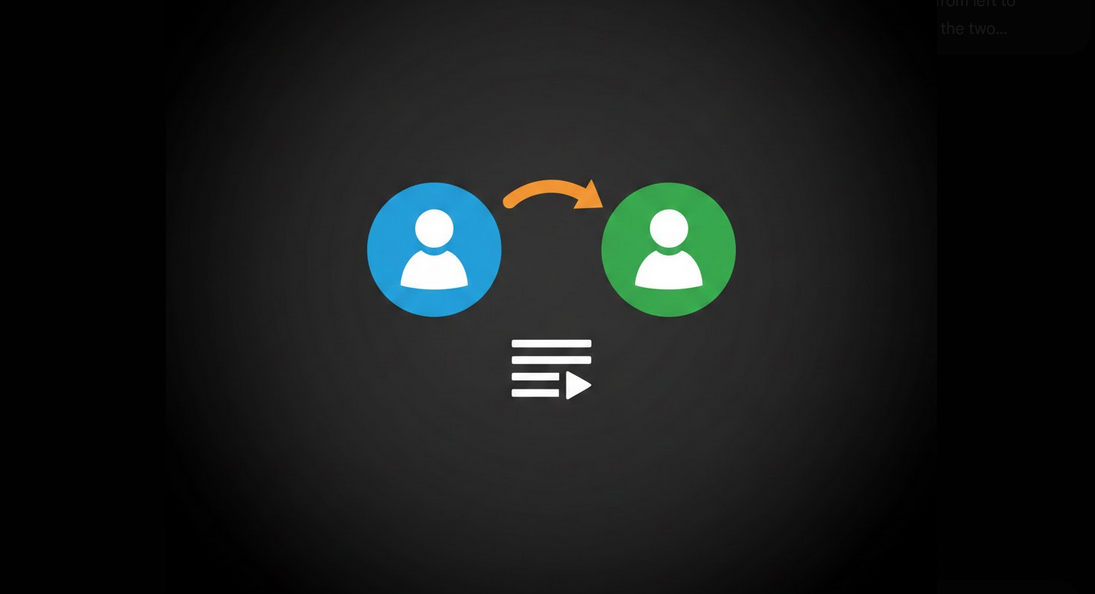
Now that you have switched or merged your Google accounts, it is almost inevitable that you will face issues when trying to transfer your carefully organized playlists on YouTube. Unfortunately, there are no tools for transferring playlist in YouTube yet. Nevertheless, there are still some ways of making this task easier for yourself when transferring your playlist.
Why Do You Need to Transfer Your YouTube Playlists?
Account merging: combining old personal and work accounts into one main account;
Account creation: switching to a brand new Google account and transferring your playlists;
Playlist sharing: sharing your playlist on the account where everyone has access;
Channel migration: transferring operations of your channel to another Google account;
Privacy reasons: transferring your playlist to a more private and specific account.
Method #1 – Manual Recreation
The most straightforward, albeit tedious way of transferring YouTube playlist is to manually add each video to your playlist in a new account.
Step #1 Sign In to Your Source Account
Step #2 Go to the playlist you wish to transfer.
Step #3 Video Titles and Their Order: go through the list of videos and record their titles and order.
Step #4 Go to Another Account
Step #5 Sign in to your destination account.
Step #6 Create a Playlist and Add All Videos Manually.
Method #2 – Collaboration
The following way will help you transfer your playlist quicker using collaboration features of YouTube.
Step #1 Make Playlist Collaborative: sign in to your source account, go to the settings of the playlist and turn on collaborate on feature.
Step #2 Share Link: copy the link and go to your destination account.
Step #3 Join as a Collaborator: join as a collaborator in the destination account.
Step #4 Copy the Videos: sign in to your destination account and save all videos to a new private playlist.
Method #3 – Third Party Apps
There is a great variety of websites and browser extensions that will allow you to transfer playlists between accounts in an automated way.
Step #1 Export Tool: applications that will allow you to export your playlists in text file or CSV format and get video links.
Step #2 Import Tool: corresponding applications that will allow you to create a new playlist in your destination account from the list you have just exported.
Step #3 TuneMyMusic: this app will not only let you transfer your playlists between YouTube accounts, but also between YouTube and other music services such as Spotify.
Step #4 Browser Extension: Chrome extension that will allow you to export and import your playlist right in YouTube interface.
Playlist Management in YouTube Vanced
YouTube Vanced gives you access to all playlists you manage in YouTube. Hence, you will be able to create, edit, reorganize and share your playlists right in the app just as you could do it in the regular YouTube app. The lack of advertisements will definitely help you to go through long playlists without being disturbed as there will be no ads loaded between pages of playlist and video entries.
Since you are able to log in multiple Google accounts simultaneously using Vanced MicroG, you will be able to switch between your source and destination accounts right in the app. This will surely help you to transfer your playlist manually since you won’t need to log in and out constantly.
Tips to Simplify the Process of Playlist Transfer
- Transfer First the Most Important Playlists: in this way, you will be sure that the important playlists will be transferred first.
- Make Your Playlists Public or Unlisted: this will simplify the process of transferring your playlist between accounts.
- Check for Deleted Videos: the videos in your old playlist may have been removed by their creators. Simply skip all unavailability.
- Verify after the Transfer: to ensure that all videos have been transferred in the correct order.
- Back up Your Playlists: use Google Takeout to back up your playlist data before transferring.
- Who Will Need to Transfer Playlists?
- Account Switchers: people who want to switch to a new main Google account;
- Music curators: people who have long playlists that they simply cannot afford to lose;
- Students: students who created educational playlists in school account and want them on their personal account;
- Content creators: YouTubers who need to transfer operations of their channel to another account.
Conclusion
Certainly, transferring YouTube playlists between accounts requires some effort due to the lack of native playlist transfer tool in YouTube, but this task is definitely manageable. You can either transfer playlists manually, use collaboration or even use third-party applications for this purpose. Using YouTube Vanced with multi-account support via MicroG will make this task easier for you on Android.